

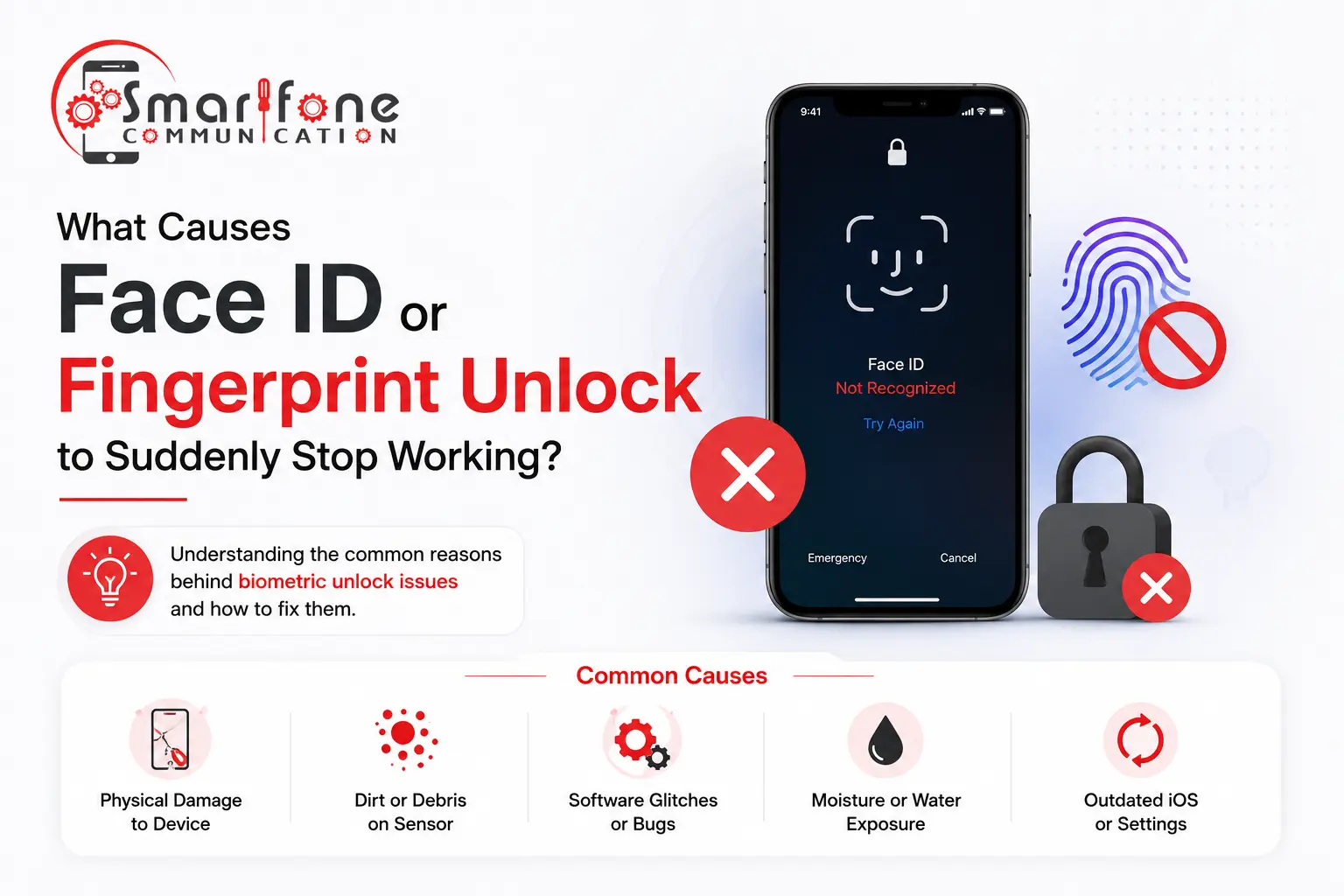
You take out your phone, look at the screen, or touch your thumb to the sensor, and nothing happens. No unlock. Only a blank stare in return. Be it Face ID not recognising your face or that fingerprint unlock completely ignoring your touch, a few things are more infuriating on a device you use all day.
The good news: the majority of biometric failures can be attributed to a specific cause, and many are easily resolved without the need for an expensive trip to the repair shop. This guide explains precisely what causes Face ID or fingerprint unlock to not work, what you should do at home, and when to seek out professional help.
How Biometric Security Actually Works
Before we delve into causes, it helps to understand what is going on behind the scenes.
Face ID relies on a TrueDepth camera system that beams tens of thousands of infrared dots on your face and captures an accurate 3D depth map. You compare the live scan every time you unlock your phone to the image stored in a profile. If they are not equal within a strict tolerance, it denies the attempt.
Fingerprint unlock (Touch ID, or under-display optical sensors on an Android): It reads the unique ridge patterns on your fingertip through either a capacitive sensor (in a physical button) or an infrared/optical sensor embedded beneath your phone screen. They are both dependent upon surface types and hardware integrity.
These systems use highly accurate sensors and encrypted biometric data stored within a secure chip, which makes them powerful but also much more vulnerable to failure than a simple PIN.
Common Causes of Face ID or Fingerprint Unlock Failure
1. Software Glitches and OS Updates
A recent iOS or Android update is one of the most common triggers for a sudden biometric failure. Operating system updates may reset or corrupt the biometric data currently stored in the protected chip, the secure enclave, that holds your facial map or fingerprint template on your device.
Warning: After a major version change, such as from iOS 17 to iOS 18 or when applying an Android security patch, the profile stored in your phone might not match against live scans. It’s not an issue with faulty hardware; the culprit is a data mismatch resulting from the update process.
Other software-related causes include:
- Corrupted system files are interfering with biometric authentication
- Background app conflicts are crashing the Face ID or fingerprint service
- Failed update installations that partially overwrite security settings
- Enterprise MDM (Mobile Device Management) policies that prevent biometric login on work-managed devices
What to attempt: After any major update, delete your stored biometric recognition or enrollment data and then engage from scratch.
2. Physical Hardware Damage
Physical damage is typically the next possible reason if software isn’t responsible. The biometric sensors are highly accurate, and they are actually more sensitive than most people think.
For Face ID: TrueDepth is a front-facing camera system that sits in a small module at the top of your display. It is comprised of a dot projector, an infrared camera, and a flood illuminator that all need to function as one. Any one of these components can disable Face ID entirely.
Common hardware causes include:
- Cracked screens that misalign the front sensor module
- Water or moisture damage to the front-facing camera array
- Physical impact that fractures the internal sensor components
- Using third-party screens with components that are incompatible with Face ID
Fingerprint sensors: Both optical sensors (like those common on Samsung and other Android phones these days) and physical capacitive buttons (to be found on older iPhones and many Androids) are susceptible to
- Screen cracks over or near the sensor area
- Accumulated oil, grime, or debris is blocking the sensor surface
- Worn sensor contacts from heavy use
- Incompatible screen protectors over in-display sensors
3. Non-Genuine or Low-Quality Replacement Parts
This is one of the most overlooked causes and one of the most damaging.
If your phone’s screen was recently replaced using non-genuine or aftermarket components, biometric failure is often the first casualty. Apple, Samsung, and other manufacturers link certain hardware, particularly display assemblies and front cameras, to the device at a firmware level. A screen swap using cheap or uncertified parts can permanently disable Face ID or fingerprint recognition.
This is why it matters where you get your phone repaired. Always use a technician who sources genuine or OEM-equivalent parts and has experience with component-level calibration. At Smartfone, our iPhone Repair Randwick and Samsung Phone Repair Randwick services use quality parts to protect your phone’s security features.
Pro tip: Always ask your repairer whether the replacement screen or part is Face ID compatible before agreeing to the repair. A few extra minutes of due diligence can save you a completely disabled security system.
4. Environmental and Physical Conditions
Sometimes the hardware is fine, but it’s the conditions working against you.
Face ID fails more often when:
- Your appearance has changed significantly (new glasses, mask, beard, facial swelling, or injury)
- Lighting is extremely low or produces harsh glare
- The front camera lens is smudged or dirty
- You’re holding the phone at an unusual angle (too close, too far, tilted)
Fingerprint unlock fails more often when:
- Your fingers are wet, sweaty, or covered in hand cream
- Skin has changed due to cuts, peeling, dryness, or eczema
- You’re using gloves or have bandaged fingertips
- The sensor has a film of residue or a thick screen protector over it
What to try: Clean the sensor with a dry, lint-free cloth. Dry your fingertips before scanning. Remove heavy-tinted screen protectors, especially cheap tempered glass that isn’t designed for your specific phone model.
5. Security Lockouts After Failed Attempts
Both iOS and Android automatically disable biometric login after a set number of failed attempts, usually five. This is a deliberate phone security feature, not a malfunction.
If Face ID or your fingerprint scanner has failed multiple times in a row (perhaps because you were wearing gloves, or someone else tried to unlock your phone), your device may have defaulted to PIN or password entry. The device lock is protecting you.
Once you enter your PIN correctly, biometric unlock should re-enable automatically. If it doesn’t, go to your settings and verify that Face ID or fingerprint is still turned on.
6. Hardware Failure from Water Damage
Water damage is particularly insidious because it’s often invisible. Even phones rated for water resistance can sustain moisture damage if the seals have worn down, or if the phone is submerged longer or deeper than its rating allows.
The TrueDepth camera module, in particular, sits near the top edge of the device, an area exposed to sweat, rain, and splashes. Moisture can damage this specific module while leaving the rest of the phone fully functional, creating a confusing scenario where everything works except Face ID.
If your phone has been near water before the biometric failure, mention it when you bring the device in for assessment.
Step-by-Step Troubleshooting: Try These Before Visiting a Repair Shop
Work through these steps in order. Many biometric failures resolve without professional help.
Step 1 — Restart your device fully. A complete restart clears temporary caches and background processes. Hold the power button and perform a full shutdown, not just a screen lock.
Step 2 — Clean the sensor and your finger or face. Use a dry microfibre cloth to clean the fingerprint sensor or front camera. Dry your fingertips completely. Remove sunglasses if using Face ID.
Step 3 — Delete and re-enrol your biometric data.
- iPhone: Settings → Face ID & Passcode → Reset Face ID, then set up again
- Android: Settings → Security → Fingerprint → Remove and re-add
Step 4 — Check for pending software updates. A software bug introduced by one update is often patched in the next. Go to Settings → General → Software Update (iPhone) or Settings → Software Update (Android).
Step 5 — Remove your screen protector. Cheap tempered glass protectors commonly interfere with optical in-display fingerprint sensors. Test the scanner directly on the glass without any cover.
Step 6 — Reset all settings (iPhone only, without data wipe). Go to Settings → General → Transfer or Reset iPhone → Reset → Reset All Settings. This clears configuration conflicts without erasing your content.
Step 7 — Check Face ID isn’t blocked by a case or obstruction. Some thick cases cover part of the TrueDepth sensor array. Remove the case and test Face ID directly.
When to Seek Professional Repair
Book a professional assessment if:
- Your phone was dropped, submerged, or physically damaged before the failure
- Face ID stopped working immediately after a third-party screen replacement
- The screen has visible cracks near the top sensor area (Face ID) or home button/display (fingerprint)
- You’re seeing persistent error messages like “Face ID Not Available” or “Unable to complete Face ID setup”
- There is no physical response at all from the fingerprint sensor (no light, no vibration)
- The troubleshooting steps above have made no difference
Avoid DIY sensor repairs. The components involved are delicate, firmware-linked, and require proper calibration tools. Incorrect attempts can cause permanent failure.
At Smartfone, our Phone Repair Randwick team handles biometric sensor faults across all major brands, including Apple and Samsung, using quality parts that protect your device’s security. Whether you need iPhone Repair Randwick or Samsung Phone Repair Randwick, we provide honest diagnostics and transparent pricing before any work begins.
Frequently Asked Questions
Sudden Face ID failure is most often triggered by one of four things: a recent iOS update that corrupted your stored facial data, a software glitch after an unexpected restart, physical impact near the TrueDepth camera, or too many failed unlock attempts putting the phone into PIN-only mode. Start by restarting your phone and re-enrolling Face ID from scratch. If the issue continues, the sensor module may need professional assessment.
If both biometrics fail together, a system-level problem is almost certainly the cause, not individual sensor damage. This points to a corrupted iOS/Android installation, a failed software update, or a security lockout from too many failed attempts. Enter your PIN, do a full restart, and check for software updates. If neither works after re-enrolment, a factory reset (with backup) or professional diagnostic is the next step.
Signs of genuine hardware failure include: a persistent “Face ID is Not Available” error that survives restarts and re-enrolment, Face ID disappearing entirely from Settings, or no response to face scans in any lighting. If re-enrolling Face ID throws an immediate error before you even complete the scan, the sensor hardware is likely damaged, not a software issue.
Work through these steps in order: (1) Restart your phone fully. (2) Go to Settings → Face ID & Passcode → Reset Face ID, then set it up fresh. (3) Clean the front camera with a dry microfibre cloth. (4) Remove your case and test in good lighting. (5) Install any pending iOS updates. (6) Try Settings → General → Transfer or Reset iPhone → Reset All Settings to clear configuration conflicts without erasing data. If none of these work, bring it in for professional repair.
A fingerprint sensor that stops without warning is usually caused by: a software update resetting the stored template, wet or oily fingers being repeatedly rejected until the phone locks to PIN mode, physical damage to the sensor after a screen crack, or a screen protector blocking an optical in-display sensor. Re-enroll your fingerprint on a dry finger and test without any screen protector. If there’s no response at all, no light, no vibration, hardware damage is likely.
On Touch ID iPhones (iPhone 8 and earlier, SE models), common causes include a cracked home button, damaged home button cable, water in the home button seal, and residue on the metal sensor ring. Critically, Apple links the Touch ID button to the specific logic board; replacing it with a non-genuine part permanently disables Touch ID. Always use a repairer who avoids duplicate parts in your mobile to protect this pairing.
The three most common causes across both Face ID and fingerprint unlock are: (1) Software issues, iOS/Android updates, or corrupted biometric data; (2) Physical hardware damage, cracks, impact, or water ingress to the sensor module; and (3) Incompatible replacement parts, non-genuine screens or buttons not firmware-paired to your device, which breaks biometric function after a repair.
Yes, in many cases. Software-related Face ID failure resolves with re-enrolment or a settings reset. If the sensor hardware is physically damaged, a qualified technician can replace the TrueDepth camera module, but it requires genuine components and proper calibration. Aftermarket modules often fail to fully restore Face ID. At Smartfone, our iPhone Repair Randwick team provides a free diagnostic before recommending any repair.
Face ID is automatically disabled by: five consecutive failed recognition attempts; restarting or powering off the device; triggering Emergency SOS; a remote lock via Find My iPhone; a corrupted iOS update; physical damage to the TrueDepth camera; or incompatible replacement screens. Enterprise MDM profiles can also block Face ID for policy reasons.
Not necessarily it depends on the parts and the repairer. Genuine Apple screens or OEM-equivalent parts installed by a qualified technician generally preserve Face ID. Cheap aftermarket screens from uncertified repairers frequently disable it permanently. Always confirm with your repairer that the replacement screen is Face ID compatible. Choosing a shop that avoids duplicate parts in your mobile protects you from this risk entirely.
For expert phone repairs Randwick, visit Smartfone. We offer fast, reliable iPhone Repair Randwick and Samsung Phone Repair Randwick services with genuine parts and same-day turnaround on most common faults.