

Every Samsung phone fix starts the same way: a tiny glitch that gets worse because of one avoidable mistake. Like a phone that won’t charge gets left on some bargain cable overnight, then suddenly you’re dealing with more than a simple power hiccup. A slow phone gets factory reset with no backup, so your photos and contacts are gone, not just delayed. And if the screen is cracked, people sometimes decide to “fix it” with a $5 kit, which then voids the warranty, plus it can damage the digitizer underneath, even if it looks fine at first.
This Samsung repair guide takes a slightly different angle than the usual troubleshooting list. Instead of only telling you what to do, we’re paying attention to what not to do- those little mistakes that turn a straightforward repair into a costly one. If you’ve searched “Samsung phone troubleshooting” or “Samsung repair near me,” yeah, this is the guide you should read first.
Samsung Phone Not Charging: The Mistake That Kills Charging Ports
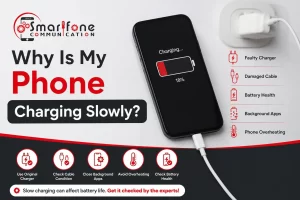
The most common Samsung phone troubleshooting complaint isn’t a dead battery; it’s really a Samsung charging port repair that could have been avoided entirely, or so it seems.
The mistake: Forcing the cable in at a funny angle, ignoring the pocket lint buildup, and yes, even using an uncertified cable that gives inconsistent power. Over weeks, that can bend the internal pins or wear down the port’s soldering, kind of gradually, like “nothing at first”.
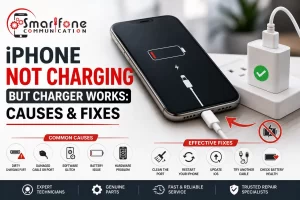
The fix: Power off the phone, then use a dry toothbrush, or a wooden toothpick (never metal) to gently clear the lint inside the charging port. Also try a different Samsung-certified cable and wall adapter before deciding the phone itself is faulty; honestly, a bad cable is the cause more often than the port. If the phone charges only when you hold the cable at a specific angle, then the port’s pins are likely bent, and that needs a technician, not more force or stubborn attempts.
Samsung Battery Draining Fast: Don’t Blame the Battery First
The mistake: Battery drain always equals a dying battery, so you end up paying for a battery replacement that still doesn’t fix anything. But usually it’s something else, like background apps doing work they shouldn’t be doing, an outdated app, or a stuck sync process, that’s the usual culprit.
The fix: Go to Settings > Battery and device care > Battery and look at which apps are guzzling power while you’re not using them. Turn off “Always Sync” for apps you don’t actively touch, and see if the drain lines up with a recent app update. If your Samsung battery draining fast started right after an OS update, don’t go changing everything at once; give it 24–48 hours. Background indexing after an update is a very common temporary reason, even if it feels scary in the moment.
Samsung Overheating Problem: Stop Charging and Gaming at Once
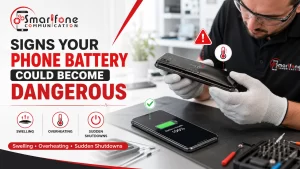
The mistake: Charging the phone while you’re gaming or doing GPS navigation, then later leaving it in direct sunlight or under a pillow. That combo is, honestly, the single biggest cause of a Samsung overheating problem, and it also speeds up battery wear in a way you can’t really undo permanently.
The fix: Take off the phone case while it’s charging, don’t charge while you’re under heavy use, and keep it out of direct sun, like in a car or on a windowsill. If it still overheats even while idle, with no apps running, then that usually signals a hardware fault like a failing battery cell or a charging IC issue, and using it like that keeps raising the risk of battery swelling.
Samsung Screen Repair & Black Screen Issue: Don’t DIY a Digitizer
The mistake: After a drop or a crack, people will either carry on using a damaged screen ( kind of spreading the crack into the digitizer ) or try a Samsung screen repair using some uncertified aftermarket kit, and then it kinda messes up touch sensitivity and water resistance, more than folks expect.
The fix: For a genuine Samsung black screen issue with no visible crack, start with a forced restart. Hold the Volume Down and Side keys together for 7 seconds, then release. This actually fixes a surprising number of what people call dead screen situations, but it’s usually a software freeze rather than a hardware fault. If the display stays black after this, or if you notice any visible cracking, stop using the phone right away and get it checked. If you keep using it with a cracked glass surface, you can end up with shards where the glass breaks off, and moisture can seep into the display assembly.
Samsung Phone Freezing: Skip the Factory Reset Until You’ve Tried This
The mistake: Jumping straight to a factory reset the moment a phone freezes, over and over. Like it feels faster, but it can erase photos, messages, and all your app data, and honestly it might not fix the real underlying cause anyway, especially if it’s really just one app misbehaving or a corrupted cache. Sometimes it’s like “ok done”, but the problem is still there.
The fix: Start a little more gently. Go to Settings > Battery and device care > Optimize now to clear the app cache. If it still keeps freezing, then boot into Safe Mode. (Hold Volume Down + Side key, tap Power off, then hold Volume Down + Side key again until the Samsung logo appears.) That helps you see if a third-party app is the one causing the problem. If the phone feels smooth in Safe Mode, then uninstall recently added apps, one at a time, instead of resetting the entire device.
Samsung Software Update Issues: Don’t Interrupt the Install
The mistake: Force restarting the phone in the middle of an update because it “seems stuck,” or doing the update while the battery is under 50%. Those interrupted installs are kinda one of the most common reasons you end up with boot loops, and also corrupted firmware.
The fix: Before you update, back up your info, make sure you’ve got at least 50% charge, and keep it on Wi-Fi. If the update genuinely hangs for more than 30–40 minutes, don’t keep doing repeated reboots, like, over and over. Try one time, then if it still won’t finish, the device likely needs professional diagnostics, not more cycling power, because repeated restarts can make the firmware damage way worse.
When DIY Isn’t Enough: Signs You Need Professional Help
Basic Samsung phone troubleshooting solves a large share of everyday issues, but certain signs mean it’s time to stop experimenting:
- The phone overheats or swells with no apps running
- Liquid exposure, even a small splash
- The screen is cracked, and touch response is inconsistent
- Charging works only at specific cable angles
- The phone won’t boot past the Samsung logo after a failed update
- Freezing continues even in Safe Mode
Pushing forward with DIY fixes at this stage is the most expensive mistake of all — what starts as a $40–60 part replacement can turn into a $200+ motherboard repair if moisture, heat, or physical stress is left unaddressed.
Finding a Reliable Samsung Repair Near Me
Not every repair shop that puts up “Samsung repair near me” is actually using genuine or OEM equivalent parts, and yeah, sometimes it’s not as straightforward as it sounds. Before you book anything, try asking three quick things, kind of like a small checklist. First, do they give a warranty on both the part and the labour? Second, will they show you the faulty component they removed, so you can see what was wrong? Third, is the turnaround time realistic for what you described… like same-day service for screens and batteries is normal, but board-level repairs usually take longer. If a shop can’t answer any of this cleanly, even if the price looks tempting, it’s better to steer clear.
Frequently Asked Questions
Slow charging usually means the cable, adapter, or port has degraded, or Optimized Charging (in Battery settings) is intentionally throttling speed to protect battery health overnight.
Mild warmth is normal. A phone that gets hot to the touch, especially while idle, signals a battery or charging circuit problem that should be checked.
Yes. An interrupted or corrupted update can leave the display unresponsive even though the phone is technically running. A forced restart resolves this in many cases.
Most Samsung batteries hold around 80% of original capacity after roughly 500 full charge cycles (about 2–3 years of typical use). Noticeably faster drain before that point is a sign of premature wear.
It doesn’t damage the battery directly, but it does generate extra heat, and heat is the main long-term enemy of lithium-ion battery health; this is the real reason it’s discouraged.
More recent Galaxy models use adhesive-sealed batteries and boards, making component-level repairs harder and part-matching (display, board serials) more important, a reason to choose a shop with model-specific experience rather than a generic fix-it service.
Always. Even non-invasive repairs, like a battery or charging port replacement, carry a small risk of data loss, and a cloud or PC backup takes only a few minutes.
About the Author
This guide was kinda put together by the repair team over at Smartfone, which is a mobile phone repair service that mostly focuses on Samsung Galaxy diagnostics and repair. The technicians there work on charging ports, batteries, screens, and software troubles every single day, so this article kinda pulls from the patterns we notice the most when customers bring in their devices for repair.
Smartfone 📍 102 Belmore Road, Randwick NSW 2031 📞 0470 505 835
Have a Samsung issue that doesn’t match what’s above? Bring it in or give us a call, most diagnostics are quick, and we’ll tell you honestly whether it’s a simple fix or something bigger.