
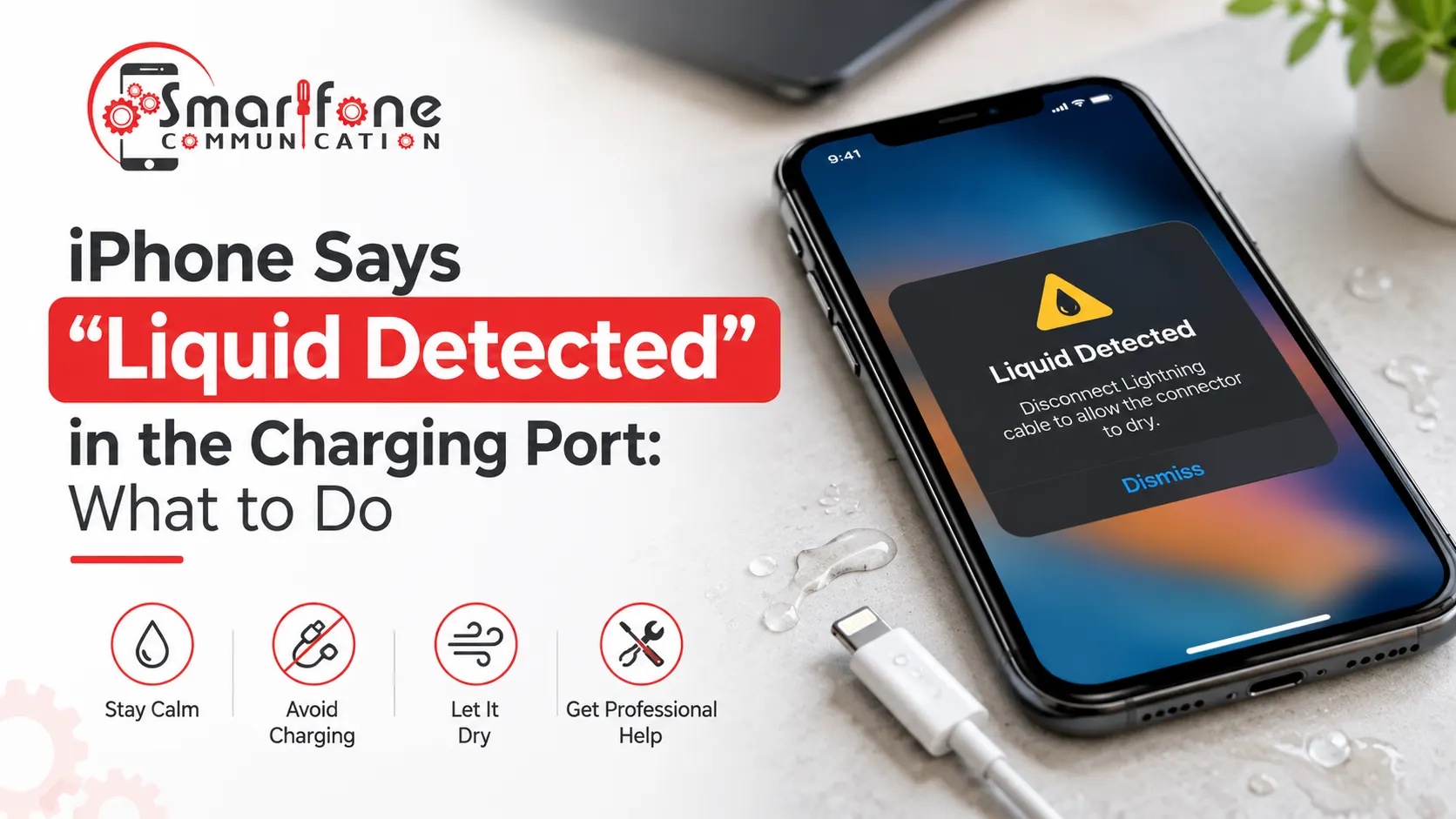
When an iPhone shows a “liquid detected” alert, it has sensed moisture in the connector, on the cable, or on an accessory, and it pauses charging to protect itself. The safe first move is to unplug, let the port dry with some airflow, and wait at least 30 minutes before trying again. If the iPhone liquid detected in charging port message keeps returning, even though nothing got wet, the port itself may need a proper check. This guide explains what the alert means, what to do, and when to bring the phone in.
What does “liquid detected” mean on an iPhone?
Apple states that iPhones such as iPhone XS, XS Max, XR, and newer iPhone models will alert you when there is any liquid inside your Lightning or USB-C port or in your cable/accessory that you connected. The exact text would be as follows:
| Alert | When it appears |
| Charging Not Available | A Lightning iPhone is connected to a charger, and liquid is detected |
| Liquid Detected in USB-C Connector | An accessory or charger is connected with a USB-C to USB-A cable |
| Liquid Detected in Lightning Connector | A Lightning accessory that doesn’t charge the iPhone is connected |
| Liquid Detected | A USB-C accessory is connected |
The alert is not only about the phone. Moisture may be present either at the end of the cable or on the accessory. This is why sometimes a new cable does help.
The reason is that charging with a wet connector leads to corrosion of the pins. This is what the support page of Apple says. Hence, it is important to take into account such a signal about liquid detection for the Lightning connector.
What to do straight away
- Unplug the cable and any accessory. Don’t keep re-plugging it to “test” the port.
- Tap out excess liquid. Place the iPhone in such a way that its port is downwards and give it a gentle tap.
- Dry it naturally with air. Just place it in a safe, dry place where there is some air circulation, and after 30 minutes, wipe the exterior surface of your iPhone and also the ends of your cable with a dry cloth.
- Avoid plugging in immediately. You need to wait for at least 30 minutes, although it takes much more time in case of other ports, and it has been observed that the drying process may sometimes take as long as 24 hours.
- Make use of wireless charging when possible. The wireless charging system will not require your port and can be done using your iPhone 8 and later.
- Use another cable and charger if your port is dry.
Apple also mentions that you will be provided with an option to override the alert and charge your device even during emergencies. This should be considered as the very last option.
What not to do
These popular remedies will not help, but on the contrary:
- Do not apply a hair dryer, a heater, or compressed air. Apple does not recommend using compressed air and external heating; moreover, air may drive moisture deeper inside.
- Do not put anything in the port. A cotton swab, napkin, or pin may leave fibres in the contacts.
- Do not keep the iPhone covered in rice. Apple warns about getting small particles of rice into the connector.
- Do not use the override method too often. Using it every day to get around a repeating alert risks corroding the pins.
iPhone liquid detected but not wet: why it still happens
It is annoying when you get the warning signal even though the phone has never gotten any splashes in its life, and this situation is quite common. This happens because the moisture detector responds to what the port detects electrically; therefore, there are several reasons why it activates even without any apparent contact with water:
- The residual moisture or condensation in the port and/or at the cable end, for instance, after being in a humid bathroom.
- Lint/debris inside the port from clothes and bags (according to iFixit).
- A damaged cable or accessory. Apple says that if the alert appears only with one particular cable, that cable may be the problem.
- A fault in the port or connected assembly when the port is clean and dry but the alert persists.
One test to distinguish between the two is to dry out your cell phone, restart it, and use a new cord and charger. If the warning pops up only when using a specific cord, you should replace that cord. If it pops up even with a new Apple cord, it is possible that your iPhone needs to be serviced.
Quick guide: what you’re seeing and what to do next
| What you see | Likely meaning | Next step |
| Alert after a splash, rain, or spill | Moisture in or around the port | Unplug, dry with airflow, wait, use wireless charging |
| Alert goes away after drying | Temporary moisture | Charge normally and keep the port dry |
| Alert with one cable only | Cable or accessory fault | Swap the cable |
| Alert with every cable, phone looks dry | Debris, trapped moisture, or a port fault | Get the port checked |
| Alert returns after a full day of drying | Moisture or corrosion that won’t clear | Get the port checked |
When is it time to get the port checked?
It’s worth having the phone looked at if:
- the alert is still there after the phone has dried for a day;
- you see it every time, with more than one cable;
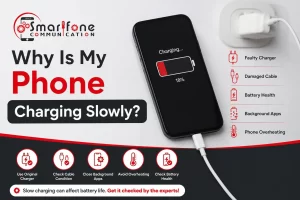
- charging is intermittent, slow, or only works at certain angles;
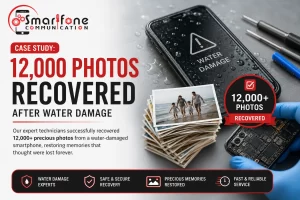
- the phone went into a pool, the sea, or a drink, rather than just getting a splash;
- you can see residue or discolouration around the contacts.
If the phone was fully exposed to liquid, the port may not be the only part affected. Our guide to iPhone water damage repair explains what to do and what to avoid in that situation. If your problem is a faulty, dirty, or sluggish port instead of a liquid detection alert, visit our guide on repairing iPhone charging ports.
What does a charging port check involve?
A port test usually involves the following steps, depending on your iPhone model and its condition:
- Examining the charging port visually for lint, dust, debris, residue, and signs of corrosion.
- Testing the device with an established good cable and power adapter to eliminate accessory problems.
- Deciding whether the port needs cleaning or whether the port assembly needs replacing.
If you’re in Randwick or the surrounding eastern suburbs of Sydney, you can bring the phone in rather than guessing. Cleaning or replacing the port is far less stressful than a repeat of corroded pins from repeated wet charging.
FAQs
It means the iPhone has sensed liquid in the Lightning or USB-C connector, or on the cable or accessory. Charging and accessory connections are paused until everything is dry, which protects the pins from corrosion.
Wait at least 30 minutes before trying again. Some ports need several hours, and guidance commonly cited allows up to 24 hours. Keep the phone somewhere dry with airflow and avoid heat.
Common causes include condensation, trapped moisture under the pins, lint in the port, or a damaged cable. Try a different cable first. If every cable triggers the alert, the port may need servicing.
Apple notes you can override the alert in an emergency, but charging a wet connector can corrode the pins. Wireless charging, where supported, is the safer way to top up while the port dries.
No. Apple advises against it because small rice particles can get into the connector and cause damage. Unplug the phone, tap out excess liquid, and let it dry in open air.
Does this alert happen on USB-C iPhones too?
Yes. Apple’s liquid-detection alerts cover both Lightning and USB-C connectors, and the message wording varies depending on the cable or accessory you connect. If either type keeps showing the alert, Smartfone can check the port.
Still seeing the liquid warning after drying? The port may need cleaning or replacing. Bring it in to Smartfone for a check. 0470 505 835 · Randwick