
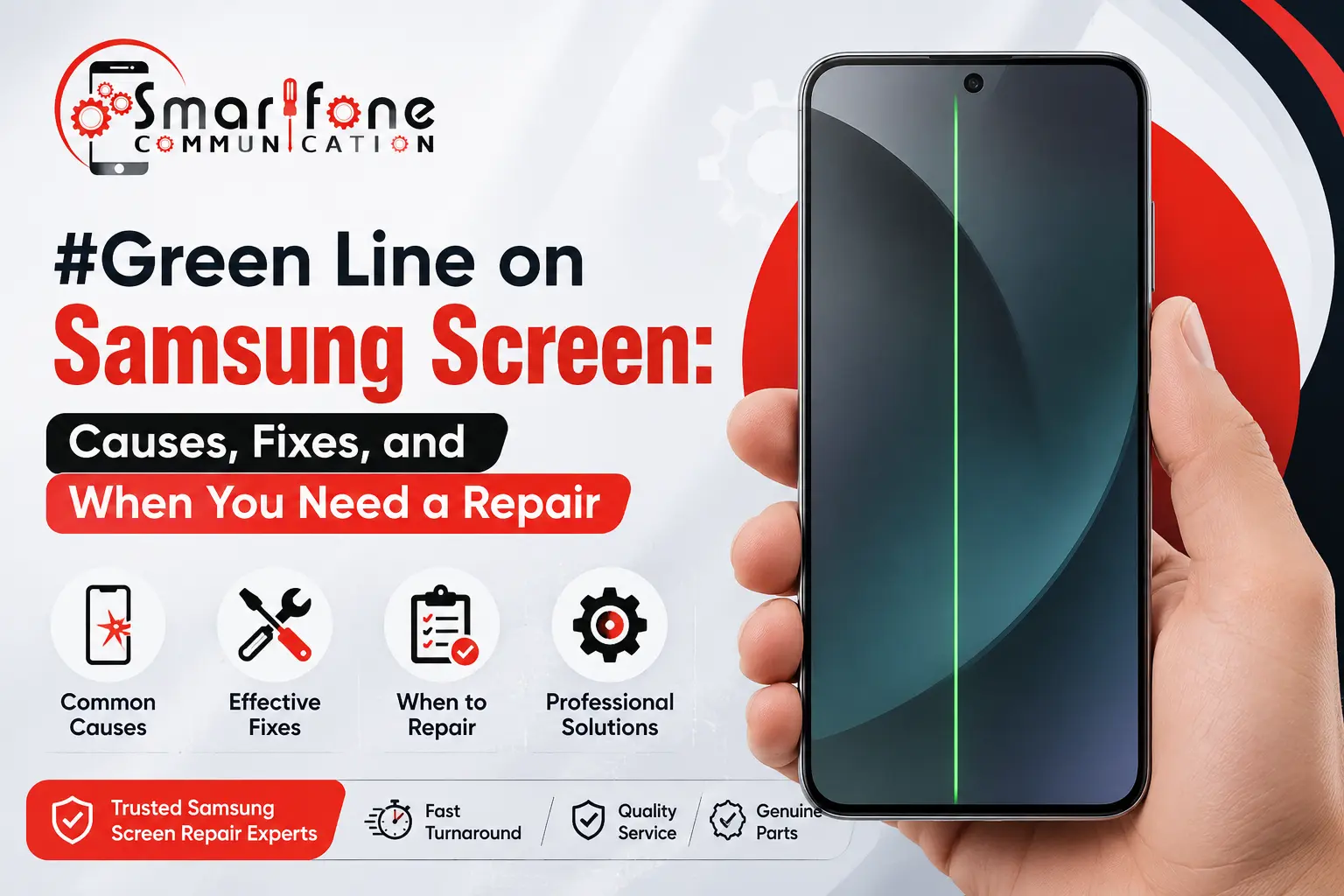
That Samsung green line on screen is, in most cases, kinda tied to a damaged display connector or a faulty AMOLED panel; sometimes it’s also a weird software hiccup right after an update, you know. On the lighter side, a fast restart, a fresh software update or even a safe mode test can occasionally calm it down, but if that green stripe stays there after rebooting, then it’s usually pointing to a hardware problem either inside the panel itself or somewhere along the ribbon connector. And at that point you’re more or less looking at a professional display replacement, not really a DIY attempt, because it can 100% make things worse.
If you’re looking at a thin vertical green thread, or a horizontal stripe, running down your Galaxy phone display right now, you’re definitely not alone. A lot of Samsung owners across Australia, from Sydney all the way to Perth, report the same kind of thing. It often appears without warning, maybe after a fall, after a system update, or just… randomly. This guide, made by the repair specialists at Smartfone, breaks down why it shows up, what you can check safely, and when it’s time to schedule a professional Samsung screen green line repair.
What Causes a Green Line on a Samsung Screen?
The green line issue on Samsung devices, like the Galaxy S, Note, and A-series, usually comes down to two broad buckets: software problems or hardware faults. Figuring out which one is happening early can save you a bunch of time and money too, plus it prevents that kind of unnecessary repair expense.
Software-Related Causes
Not every green line means your screen is actually broken. Samsung’s One UI updates now and then bring along display rendering quirks, and they can show up as thin, flickering, or even slightly static coloured lines.
- Green line after a Samsung update yeah, this one is a common trigger. After you install a new One UI version or an Android security patch, some people spot a green line pretty much right away. In most cases, it’s tied to a graphics driver behaviour or a refresh-rate mismatch, not physical damage.
- Also, app-specific glitches can matter. If the line only shows up inside certain apps or games (especially titles that push high refresh rate modes), then it’s more likely a rendering conflict. That’s usually less about hardware, more about how the app asks the panel to draw.
- And then there’s the corrupted display cache, or even display firmware settings. Sometimes the cached display configuration gets messed up, so the same visual artefacts stay around. A cache clear, or a firmware reset step, often makes it settle down again.
Hardware-Related Causes
Most persistent green lines, especially the ones that don’t just vanish after a restart, are usually about hardware, not software.
- AMOLED display panel failure is a big one. Samsung’s Super AMOLED and Dynamic AMOLED depend on individually lit pixels. If a chunk of the panel’s driver circuitry starts degrading or outright fails, you can end up with a Samsung AMOLED green line that looks glued to the screen, like it’s fixed, not “temporary”.
- Display connector issues also happen a lot. Samsung phones rely on a delicate ribbon cable, the FPC connector, to link the display to the motherboard. A bump, a drop, or even normal wear and tear can loosen it or cause some kind of damage. Then you may see a partial green line, or sometimes more of the display looks off too.
- Physical impact or pressure damage is another culprit. Sitting on the phone, dropping it face-down, or keeping it in a cramped pocket with keys can stress the panel from the inside, without the glass necessarily cracking. So the result is basically a display panel failure that’s kinda invisible except for that colored line.
- Moisture or corrosion damage, in Australia’s humid coastal regions, plus sudden temperature changes, can really speed up corrosion inside connectors, especially on devices that do not have an active IP68 seal, which is common after a prior repair or if a rubber gasket is getting older and not quite sealing the same way.
- Screen flickering with lines; sometimes a green line shows up alongside the flickering or dimming. That usually means the display connector issue is getting worse, or you are seeing an early-stage OLED display problem, and it tends to expand over time if it is left unaddressed.
Step-by-Step Troubleshooting for a Green Line on a Samsung Screen
Before you assume the worst, try to work through these steps. It all takes like under 15 minutes, and it can rule out the simple software causes, not the weird hardware ones yet.
Step 1: Restart Your Device
A basic restart kinda clears the temporary memory, and usually can fix those tiny view or screen rendering glitches that pop up. Try holding down the power button and the volume-down button; keep them there until the phone reboots.
Step 2: Check for Software Updates
Go into Settings > Software Update > Download and Install. If that green line showed up right after the update, Samsung may have already rolled out some kind of patch that fixes the Green Line After Samsung Update issue for your exact model.
Step 3: Boot Into Safe Mode
Safe Mode sort of turns off third-party apps, so you can figure out whether a downloaded app is making that screen thing misbehave.
- Press and hold the power button
- Tap and hold Power off, then confirm Safe Mode.
- Check, in Safe Mode, if the green line goes away.
If it vanishes there, uninstall recently added apps one by one until you find the culprit.
Step 4: Check Display Settings and Refresh Rate
Try going to Settings > Display > Motion Smoothness, then switch back and forth between Standard and Adaptive refresh rates. Some people notice the line sorta fades out for a moment when they’re on the lower refresh rate. If that happens, it’s kind of a clue that the problem sits right on the edge between software behavior and hardware limitations.
Step 5: Perform a Soft Reset of Display Cache
Clearing the system cache partition (accessible via Recovery Mode on many Galaxy models) can remove corrupted display data without affecting personal files.
Step 6: Inspect for Physical Damage
Gently examine the edges of your screen for hairline cracks, separation from the frame, or signs your phone was recently dropped or pressured. If you notice any of these alongside the green line, this points strongly toward a hardware fault.
Step 7: Test With an External Display (Screen Mirroring)
Cast your screen to a Smart TV or use Samsung DeX. If the green line does not appear on the external display, the issue is isolated to your physical screen panel confirming a hardware problem.
Real-world example: A Galaxy S22 user in Melbourne noticed a thin green line after updating to a new One UI version. A factory reset didn’t help, but screen mirroring showed a clean image on an external monitor, confirming the fault was in the physical display, not the software. The device needed a full screen assembly replacement.
When Does a Green Line Mean You Need a Screen Replacement?
If you’ve gone through the troubleshooting bits above and that green line is still there, especially if any of these things happen, then a professional screen swap is usually the only solution that actually holds up:
- The line stays after a factory reset, and the Safe Mode check doesn’t change anything
- You can see the same line even when you mirror to an external display
- The phone took a drop, got bent, or got pressed on recently
- The line comes with flickering, dead pixels, or weird discoloration
- The line keeps widening, or starts to show up in more than one place as time goes on
- Your device is out of warranty, or the warranty doesn’t cover accidental damage
At this point it’s commonly a display connector problem, or a failing AMOLED panel. In either case, it means opening the device and either reseating the ribbon connector or swapping the whole OLED assembly. This is not really a home DIY repair, because on most recent Galaxy models Samsung basically fuses the display assembly with the digitizer and frame. If you mess around with it incorrectly, you can risk harming the battery, camera, or those waterproofing seals, so yeah, best left to someone equipped for it.
Australian Context: What to Know Before Getting a Repair
For Samsung owners in Australia, there are a couple of local things that are worth clocking before you go ahead and book a repair, just so you don’t get surprised later
- Warranty coverage: Samsung Australia runs a standard manufacturer warranty, yet screen problems tied to falls, pressure marks, or unauthorised servicing are usually treated as accidental damage and left out. Still, under Australian Consumer Law, if the issue turns out to be a manufacturing defect, you may be looking at a right to repair, or a replacement, or even a refund, as long as it is not from misuse
- Genuine vs aftermarket parts When you call the repairer, ask straight up if they’re using genuine Samsung OEM AMOLED displays, or if they offer a well-matched third-party option. OEM screens commonly bring sharper colour fidelity and longer service life, but aftermarket alternatives can be a sensible low-cost choice, especially for older handset models
- Turnaround time: A lot of reputable repair places in major metro areas like Sydney, Melbourne, Brisbane, Perth, and Adelaide can get a Samsung screen replacement done in about 1–3 hours for the usual models. For regional towns, it may be slower because parts might need to be shipped in first; sometimes that adds a bit of waiting time, so plan accordingly
- Data safety is a big deal, a reputable repairer shouldn’t insist on a factory reset just for a screen-only replacement, because the issue is tied to the display hardware, not your files, your apps, or the software.
- Certified technicians should try to find people who explain their testing steps clearly, and who also back the work with a warranty covering parts and labour, ideally somewhere around 3 to 12 months. That length usually shows they’re confident they’re using authentic display components.
Smartfone’s technicians also do a free diagnosis first before any repair, so you’re not guessing; you can see what’s actually causing the fault before you agree to go ahead with a fix.
Frequently Asked Questions
A: Occasionally, if the cause is a minor software bug following an update, a restart or software patch resolves it. However, if the line is caused by a damaged display connector or a failing AMOLED panel, it will not resolve on its own and typically worsens over time.
A: It depends on the cause. Manufacturing defects are usually covered under Samsung’s standard warranty and Australian Consumer Law. Damage caused by drops, pressure, or moisture is generally classified as accidental damage and excluded from standard warranty coverage.
A: Costs vary by model and whether genuine or aftermarket parts are used, ranging from budget aftermarket repairs on older models to premium OEM AMOLED replacements on flagship devices. A local diagnostic is the most reliable way to get an accurate quote for your specific model.
A: Basic software troubleshooting, such as restarting, updating, and checking Safe Mode, is safe to try at home. However, physically opening the device to inspect or replace the display connector is not recommended without professional tools and training, as it risks further damage to the battery, camera, or waterproofing.
A: A screen protector guards against surface scratches and glass cracks but cannot prevent internal display connector damage caused by drops, bending, or pressure. A quality impact-absorbing phone case is more effective at preventing the hardware faults that lead to green lines.
A: Some One UI and Android updates introduce temporary display driver conflicts. If the line disappears in Safe Mode or after a subsequent patch, it confirms a software cause rather than a hardware fault.
Get Your Samsung Screen Diagnosed by Smartfone
A green line on your Samsung screen usually doesn’t really get better by itself, and honestly, the longer it stays there, the more often it spreads or starts looking like a bigger display panel problem. If you already went through the software troubleshooting steps above and the line is still showing, then it’s time to get a real diagnostic from a technician, who can tell you if it is the display cable/connector acting up or if the AMOLED panel is failing. Then it can be corrected with a genuine, warrantied screen replacement instead of guesswork.
Book a Samsung screen diagnostic and repair with Smartfone today, and get your Galaxy back to a crisp, clean display with no line issues, plus workmanship warranty coverage and a quick local turnaround.